This article documents the (mostly) human readable comma separated value format that we use to backup and restore your data. We have an open format so that others may easily import data into (or out of) our application. Some of the data is in a format that popular financial software may export directly as well, if you select the appropriate visible headers in their check register before exporting.
It may be best to download our sample data CSV and/or our Numbers files and follow along.
Simplifying
Some of the data is in a format that popular financial software may export directly as well, if you select the appropriate visible headers in their check register before exporting.
If you'd like to simply get your key account and transaction data imported quickly, then we recommend you do two things:
- Fill out the Categories table.
- Create an Account table for each key account with any transactions that you want to import. You can also leave transaction tables blank and just have the empty account created and then import transactions into that account later. See NOTE below.
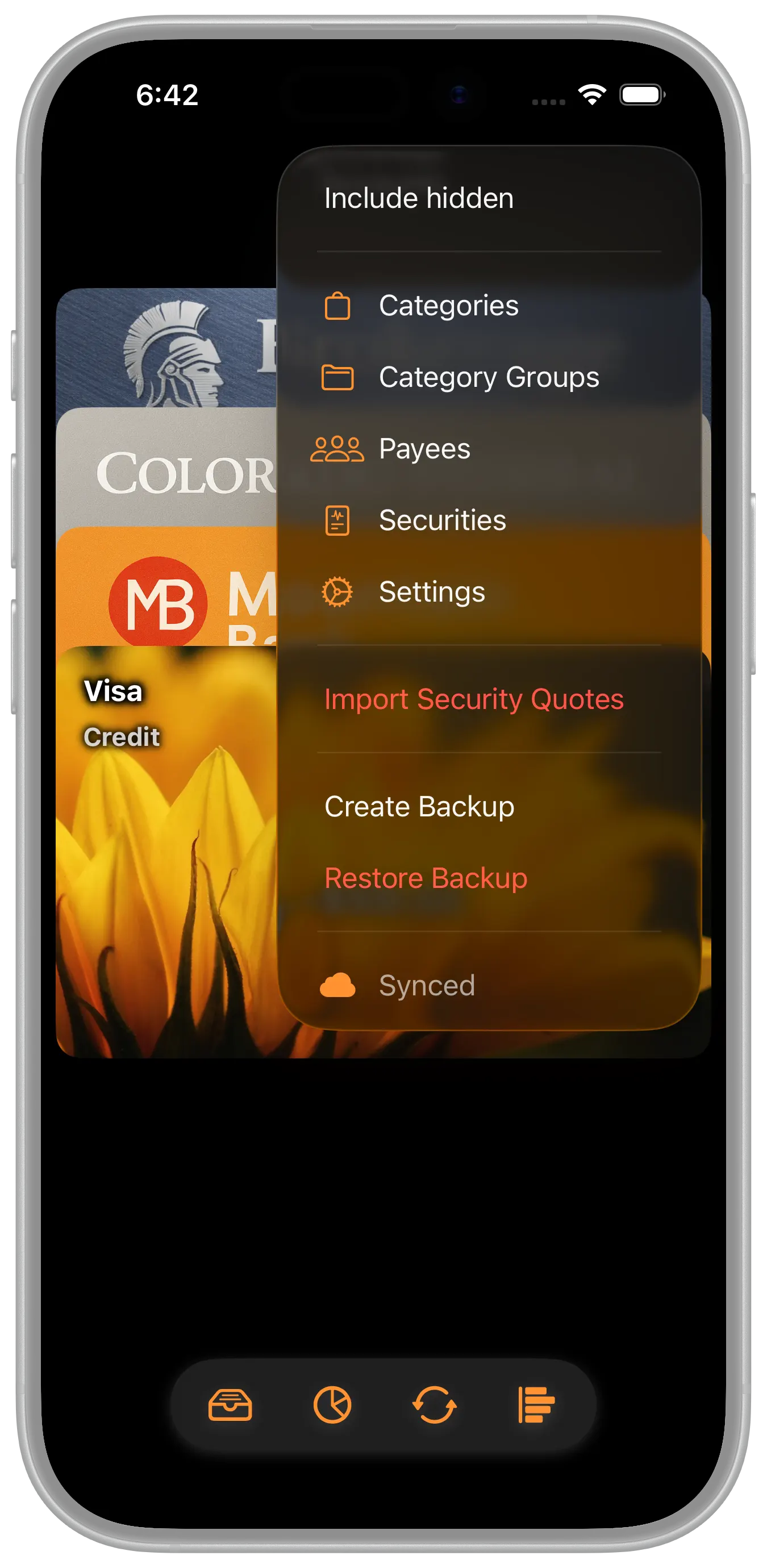
- Then simply use the "Restore Backup" menu option to import that data.
With those two tables you'll get the most important details imported initially. You can then use the app features, including the Import CSV account feature, to import and configure the rest of your accounts over time.
NOTE: It's best to create all accounts up front, even if the transactions aren't imported, just in case of any transfer transactions between them. If there are any pre-existing transfer transactions in your import data, where an account participating in either side of the transfer won't exist at some point during an import, those transfers will be recorded in the account that does exist but orphaned since the other transfer account does not exist. If both accounts involved in a transfer are created during the same import the transfer transaction will be linked properly on both sides of the transfer. If there are no transfer transactions within an account you can safely create it later and then import into that account from a supported format.
Numbers
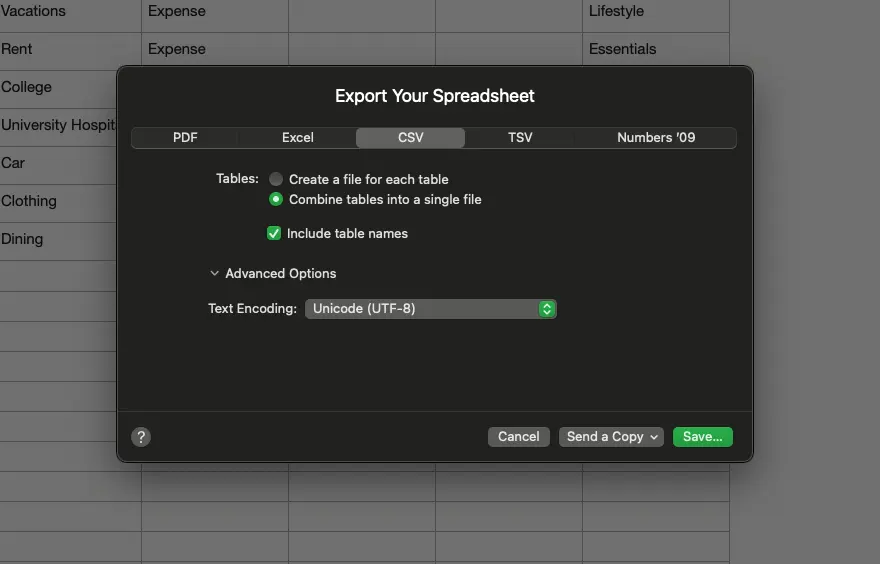
It's helpful to use Apple's Numbers application to edit and read CSV files. It displays the data in tabular format. In addition, you can organize the data within Numbers in tabs. We'll show you how below, but please remember to "Export to" the CSV format you will need to ensure that a single CSV file with all tables is created. Each table should have two or more blank lines between them. The good news is that you can generate the format easily by selecting two options when exporting to CSV with numbers. Option 1 that you must select is "Combine tables into a single file." This ensures that all of the tables are output to a single file that can be read into MyFinancials. Also select Option 2, "Include table names." This will become evident as we walk through the format.
CSV Escaping
Here's a quick note about CSV escaping. Numbers handles it automatically, however if you type into any field you will need to be aware of this. CSV escaping handles special characters (commas, quotes, newlines) within data fields by enclosing fields in double quotes (") and doubling any internal double quotes ("") to prevent data corruption, ensuring commas and quotes within a value are treated as data, not separators. If a field has a comma, newline, or double quote, it must be quoted; a double quote within a quoted field becomes two double quotes (e.g., Hello "World" becomes "Hello ""World""").
Tables
Tables hold tabular data that represents different financial entities. It may be best to download our sample data CSV and/or our Numbers files and follow along. Here's an overview of each table.
| Table | Description |
|---|---|
| Categories | This table holds the categories for transactions, like Groceries, Salary, etc. |
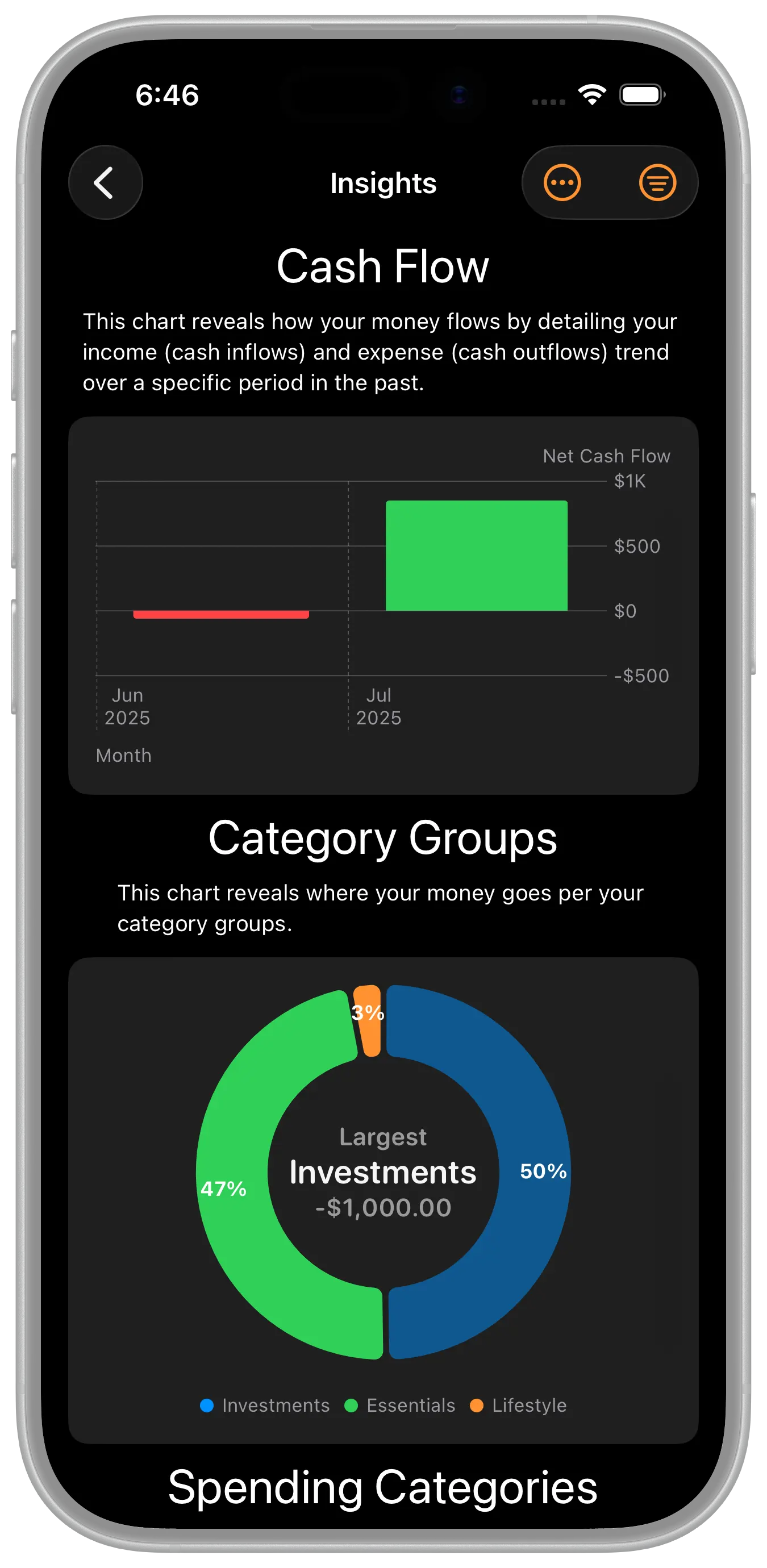
| Groups | This table holds category group names. They are a way to group categories and are helpful for zero effort budgeting. For example, many find it helpful to create Essentials, Lifestyle, and Goal groups. There are two automatically computed reserved groups: Investments and Savings. In reports, investments include investment transactions that are not expenses or income. Savings includes any transfers to savings accounts (Savings, CD, Money Market). |
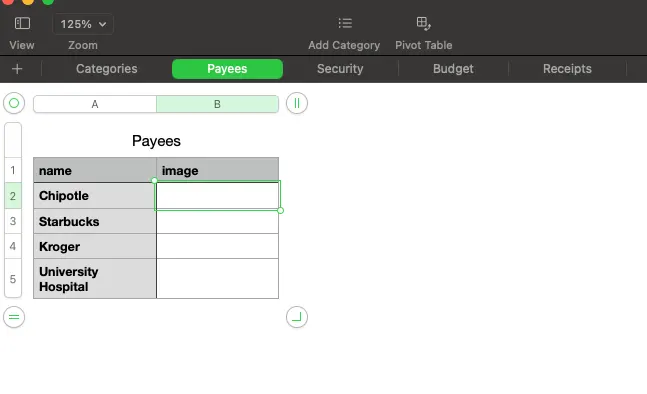
| Payees | This table holds payee names. This helps you to ensure you type the same name for the same payee each time. It also contains a computer written image. The image field should not be modified by you, the program will write that field when exporting data so that your image selection will be remembered. It can always be cleared. |
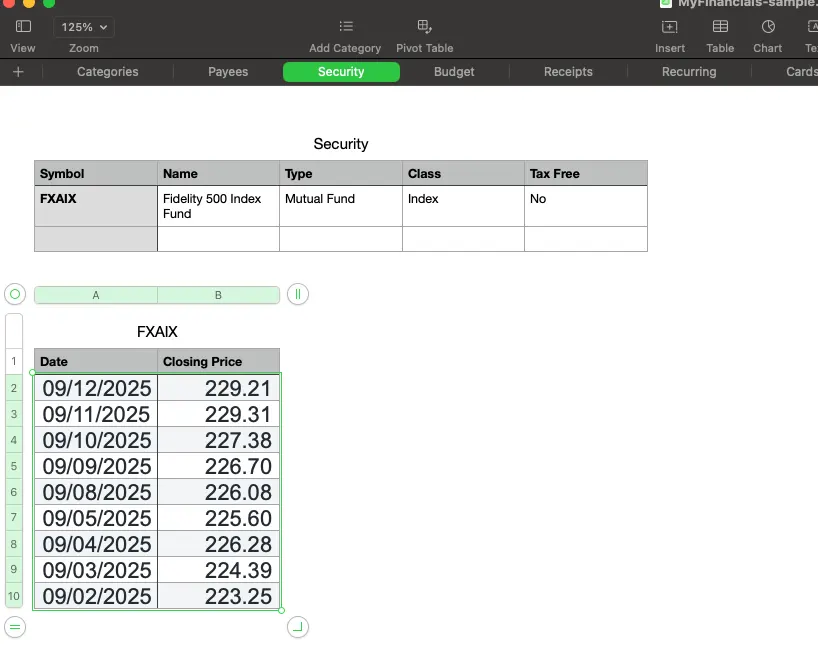
| Security | Similar to the Payees table, this table holds details about the securities you may be tracking or holding in an account. |
| Security : [Security Symbol] | Additional security tables in the same tab hold the price information for a security. Those tables are distinguished by a ticker symbol. |
| Receipts | This table holds the information collected by our innovative Receipt feature. |
| Recurring | This table holds the information about recurring transactions. For example, when you setup a paycheck to be received on the 15th and the last day of the month. |
| Cards | This is simply a cache table that maps Apple pay cards to the last account they were entered into. We use this to default the settings for subsequent receipts from Apple Pay. You can leave this table blank. |
| [Account Name] : Details | This table holds the details about a given account. |
| [Account Name] : Transactions | This table holds the transactions for a given account. |
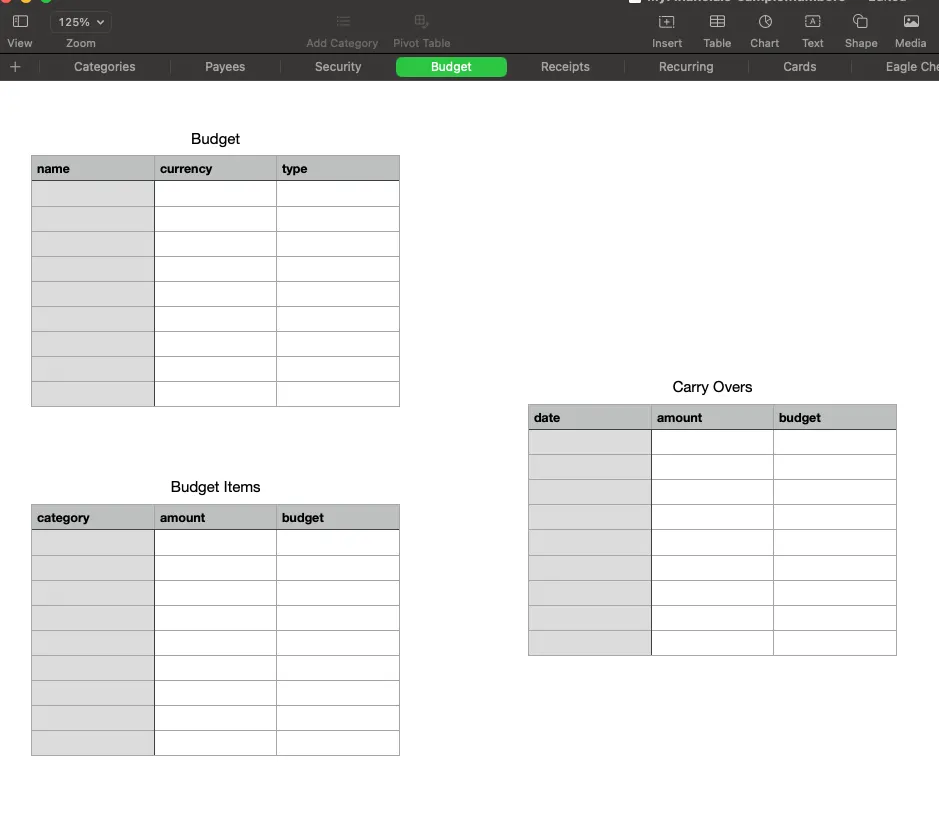
| Budget | The budget table holds the list of budgets |
| Budget Items | This table holds the line items for a budget. |
| Carry Overs | This holds the carry over amounts for zero balanced budget types. |
Simple Tables
With that context, here are the details for each table. Please remember that the content of the field may need to be escaped.
Categories
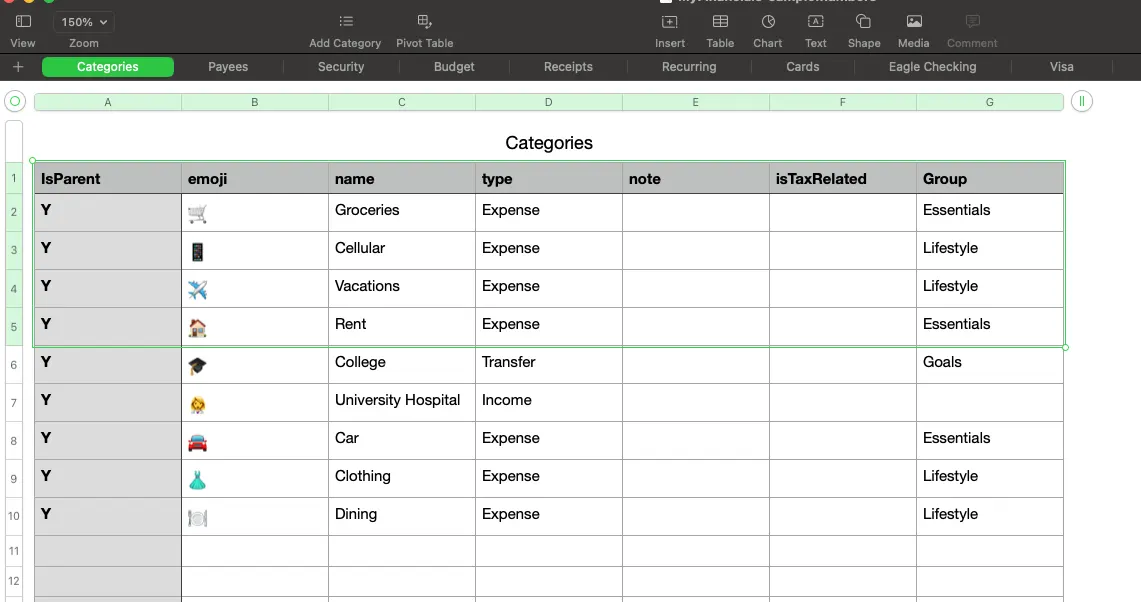
Each of the columns are explained below
| Column | Values |
|---|---|
| IsParent | Yes or No indicates if the category is a parent (Y) or child (N). If the category is a child category it is a child of the parent that precedes it. |
| emoji | This is the emoji, if any, for the category. |
| name | The name of the category. Investments is a reserved name. |
| type | There are four types: Income, Expense, Investments, and Transfer. Please note that each of those are already supplied required categories. The names are reserved. |
| note | Any notes about the category |
| IsTaxRelated | Yes or No indicates if the category is a tax related category. |
| Group | Yes or No indicates if the category is a tax related category. |
Accounts
Each tab that does not have a reserved table name (as shown in the table above) represents a single account with the tab name being the account name. The content of that table are the transactions for that account.
As an option, the following two tables can be used in a single CSV file to import into a single account using the Import Account CSV option. This option enables you to import accounts over time.
Transactions
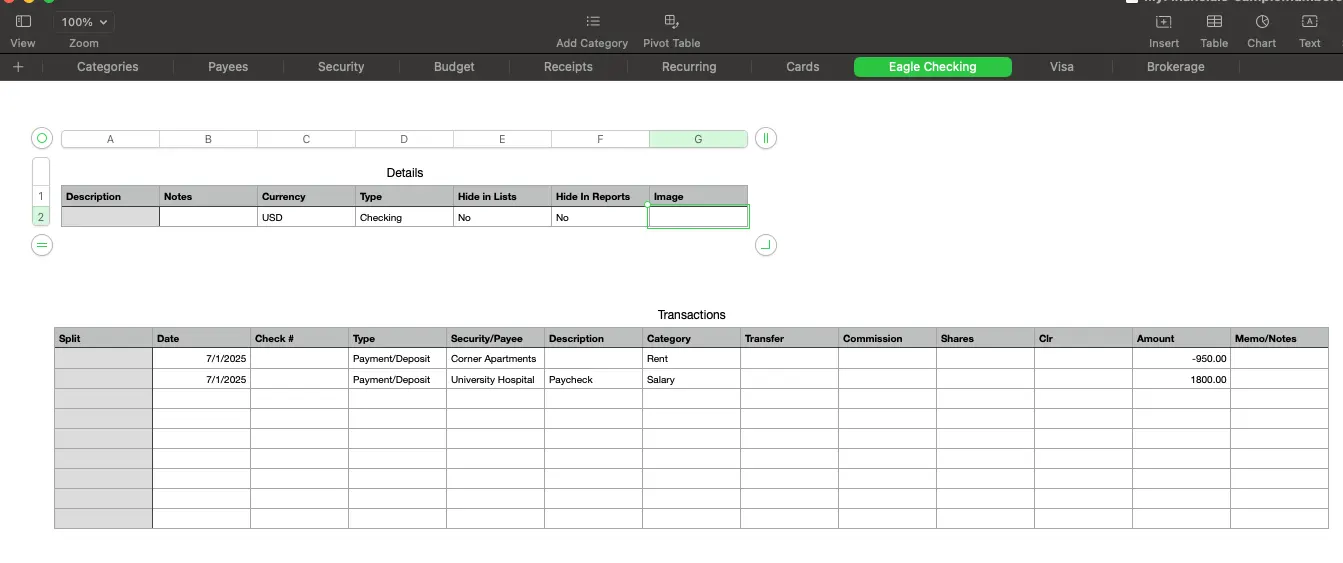
Each of the columns are explained below
| Column | Values |
|---|---|
| Split | S if this is a split transaction, otherwise blank. A split transaction uses multiple successive rows in the table to record a single transaction. Each row would be marked with an S in this column. |
| date | The UTC date of this transaction. |
| check # | The check number if there is one. |
| type | The type of transaction. Possible values are Payment/Deposit, Buy, Sell, Stock Dividend, Reinvest Dividend, Reinvest Interest, Reinvest Long-term Capital Gain, Reinvest Short-term Capital Gain, Dividend Income, Interest Income, Long-term Capital Gain, Short-term Capital Gain, Miscellaneous Income, Add Shares, Remove Shares, Margin Interest Expense, Miscellaneous Expense, Return of Capital, Stock Split, Short Sell, Buy to Cover, Buy Bonds, Sell Bonds. |
| Security/Payee | The name of the payee or the security name for the transaction |
| Description | This is used by the program to record details about the transaction. It is especially important for many transaction types (other than Payment/Deposit). See the Description table below for the details of this field in case you are importing transactions. Note, some popular personal finance applications export with these descriptions already. |
| Category | The category for the transaction or, depending on the Split column, for this part of the transaction. |
| Transfer | If this (part of the) transaction is a transfer, this column will contain the name of the other account involved. |
| Commission | The commission value in decimal format without any monetary symbol. |
| Shares | The number of shares in decimal format if this is one of the stock transaction types. |
| Clr | Blank if the transaction has not been cleared, or C if it is cleared, or R if the transaction has been reconciled. |
| Amount | The amount of (this portion of) the transaction in decimal format without any monetary symbol. |
| Memo/Notes | User notes about this transaction or portion of the transaction. |
Description
This is the format of the transaction description field for the USD currency. For each currency supported, it uses the locale's number format but the same description text and format.
When [# description] is in the format, it stands for a single bare decimal number, meaning there is no monetary symbol included. The description within the brackets, the '#' sign, and the brackets([]) themselves simply describe the number and should not appear in the field. All of that is simply replaced with a single, bare, decimal number.
NOTE: The format for the transaction types in the table below are required in order for the application to compute the value correctly. There may be formats for other transaction types that are not listed below, but they are not required.
| Transaction Type | Format |
|---|---|
| Stock Dividend | Shares per share [#] |
| Reinvest Dividend | Reinvest [# amount] of [# number of shares] shares @ [# price per share] |
| Reinvest Interest | Reinvest [# amount] of [# number of shares] shares @ [# price per share] |
| Reinvest Long-term Capital Gain | Reinvest [# amount] of [# number of shares] shares @ [# price per share] |
| Reinvest Short-term Capital Gain | Reinvest [# amount] of [# number of shares] shares @ [# price per share] |
| Add Shares | [# share count] shares @ [# share price] |
| Stock Split | Split [# numerator] for [# denominator] |
| Buy Bonds | Face value [# face value] @ [# price per share] with [# accrued interest] |
Details
The details of an account are optional.
| Column | Values |
|---|---|
| Description | A user provided description of the account |
| Notes | Any additional notes on the account |
| Currency | The ISO 4217 currency code for transactions within the account. |
| type | The type of the account. Possible values are: Cash, Checking, Savings, CD, Money Market, Credit, Brokerage, Retirement, Roth, IRA, 401K, SEP, 403B, Keogh, Simple, 529p, HSA, Other, Loan, Asset. |
| Hide In Lists | Y or N controls whether the account is hidden in account lists or not. |
| Hide In Reports | Y or N controls whether the account is included in any insights |
| image | This is used by the program to store the credit card like image for the account. It should be blank and only written by the application. |
Advanced Tables
If you are simply trying to get your main financial data into the app, you're done. The two tables above capture all that you'll need. These more advanced tables contain additional advanced data that can all be managed within the app.
Groups
| Column | Values |
|---|---|
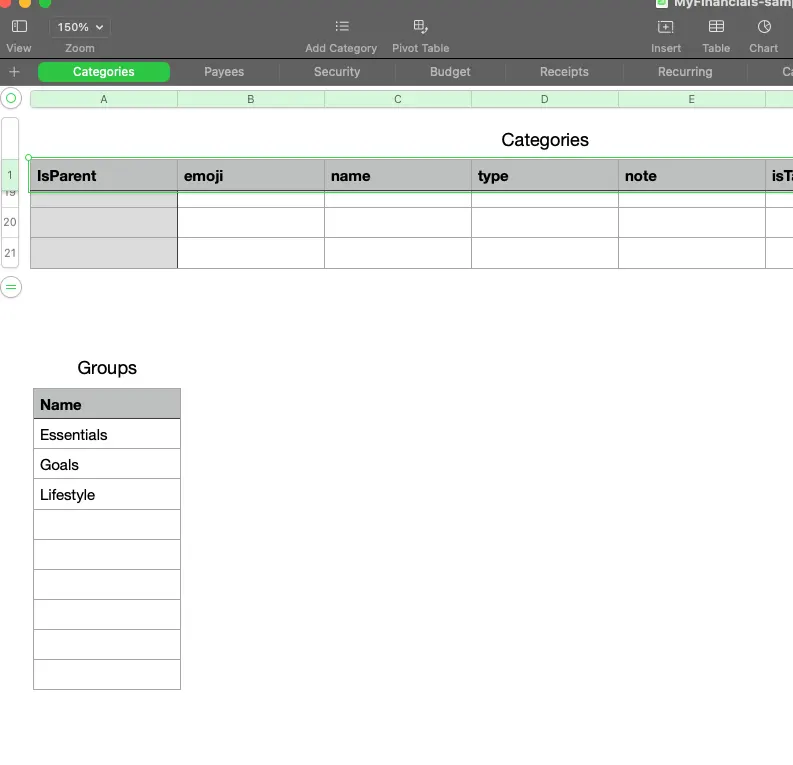
| Name | This table should be in the same "Categories" tab as the "Categories" table is. Name is the name of the category group. Groups are used to organize categories. There are two reserved names: Investments and Savings. |
Payees
| Column | Values |
|---|---|
| Name | Contains the unique name of each payee. |
| Image | This field should only be written by the application. It contains encoded image data. This is the image for the payee. |
Security
| Column | Values |
|---|---|
| Symbol | Contains the unique ticker of the security. |
| Name | The unique name of the security |
| Type | A specific type of the security; it must be one of the following: "Stock", "Bond", "Mutual Fund", "US Savings Bond", "CD", "Index", "Option", or "Other". |
| Class | A specific asset class of the security; it must be one of the following: "Unclassified", "Large Cap Stocks", "Small Cap Stocks", "International Stocks", "Domestic Bonds", "Global Bonds", "Cash", "Money Market", "Mixed Multiple", or "Index". |
| Tax Free | Yes or No depending on if the security is considered tax free. |
Security Symbol (e.g. FXAIX) Price History
| Column | Values |
|---|---|
| Date | Date of the closing price |
| Closing Price | The closing price without any monetary symbol |
Budget
| Column | Values |
|---|---|
| name | Unique name of the budget |
| currency | The currency code |
| type | The type of budget. Either "Traditional" or "Zero Based" |
Budget Items
| Column | Values |
|---|---|
| category | The category name for the line item. This must match a category name in the categories table. |
| amount | The target amount for the budget absent any symbols. |
| budget | The unique budget name that this line item belongs to. |
Carry Overs
| Column | Values |
|---|---|
| date | The date of the carry over which is forced to the 1st day of the month. |
| amount | The amount of the carry over absent any symbols. |
| budget | The unique budget name that this carry over belongs to. |
Receipts

| Column | Values |
|---|---|
| date | date |
| card | The card name |
| merchant | The name of the merchant where the transaction occurred |
| amount | The amount of the transaction |
| currency | The currency of the transaction |
| category | The category of the transaction; this may be a different category than what is in the categories table. |
Recurring
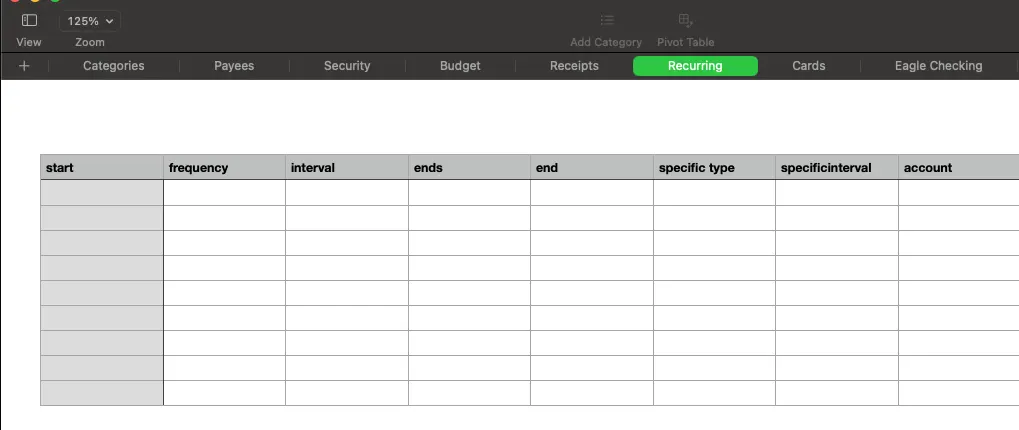
The recurring table can be thought of in two halves. The first half are the recurring portion which deals with the scheduling of transactions. MyFinancials has a very flexible scheduling system. The columns dealing with scheduling are explained below. The other half of the recurring table columns is identical to the Accounts Transaction table but the Account column of the Transaction must be blank. In the recurring table those columns describe a template of the transaction that reccurs.
| Column | Values |
|---|---|
| start | The date which defines the starting point for the recurrence rule |
| frequency | daily (0), weekly (1), monthly (2), yearly (3) |
| interval | the repeat interval |
| ends | never (0) | # of occurrences | use end date (-1) |
| end | end date for the recurrence |
| specific type | none (0) | days of the week (1) | days of the month (2) | months of the year (3) |
| specificinterval | array of ints where the ints, separated by commas, represent the specific type |
| account | the account name where the recurring transaction is to be entered |