Customization
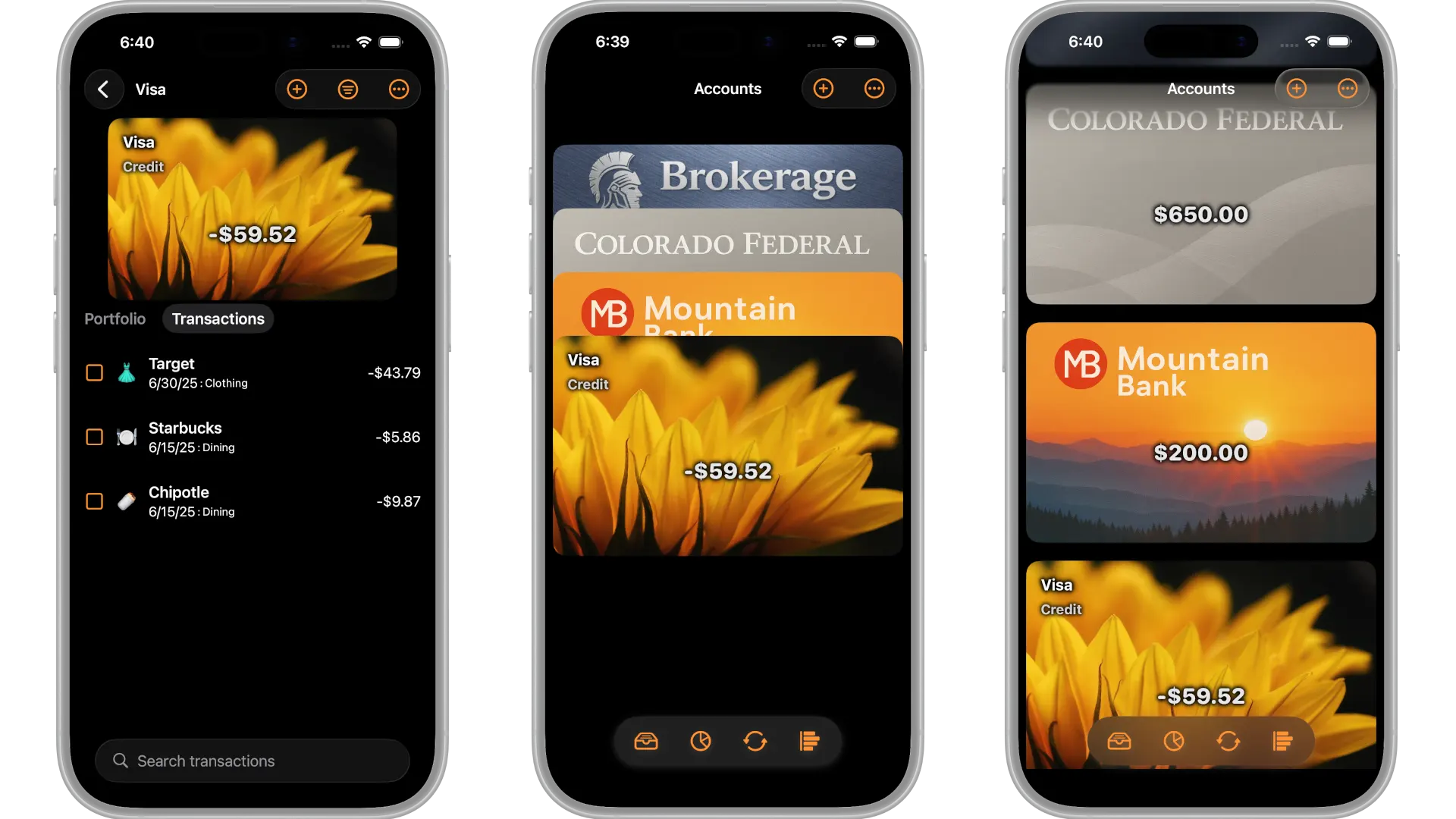
Whether you want your account to look like your credit card, or that Starbucks charge to look like Starbucks (or your favorite Coffee emoji), or you want your kid's 529 plan to have a baby photo of them, it's all possible in My Financials! It's also very helpful and motivational since you'll know at a glance what your accounts and transactions are truly all about! Let me show you how to do it.
What Can You Customize
There are three areas you can customize:
- Account Images (wallet mode)
- Payee Images
- Category Emojis
Wallet Mode Images
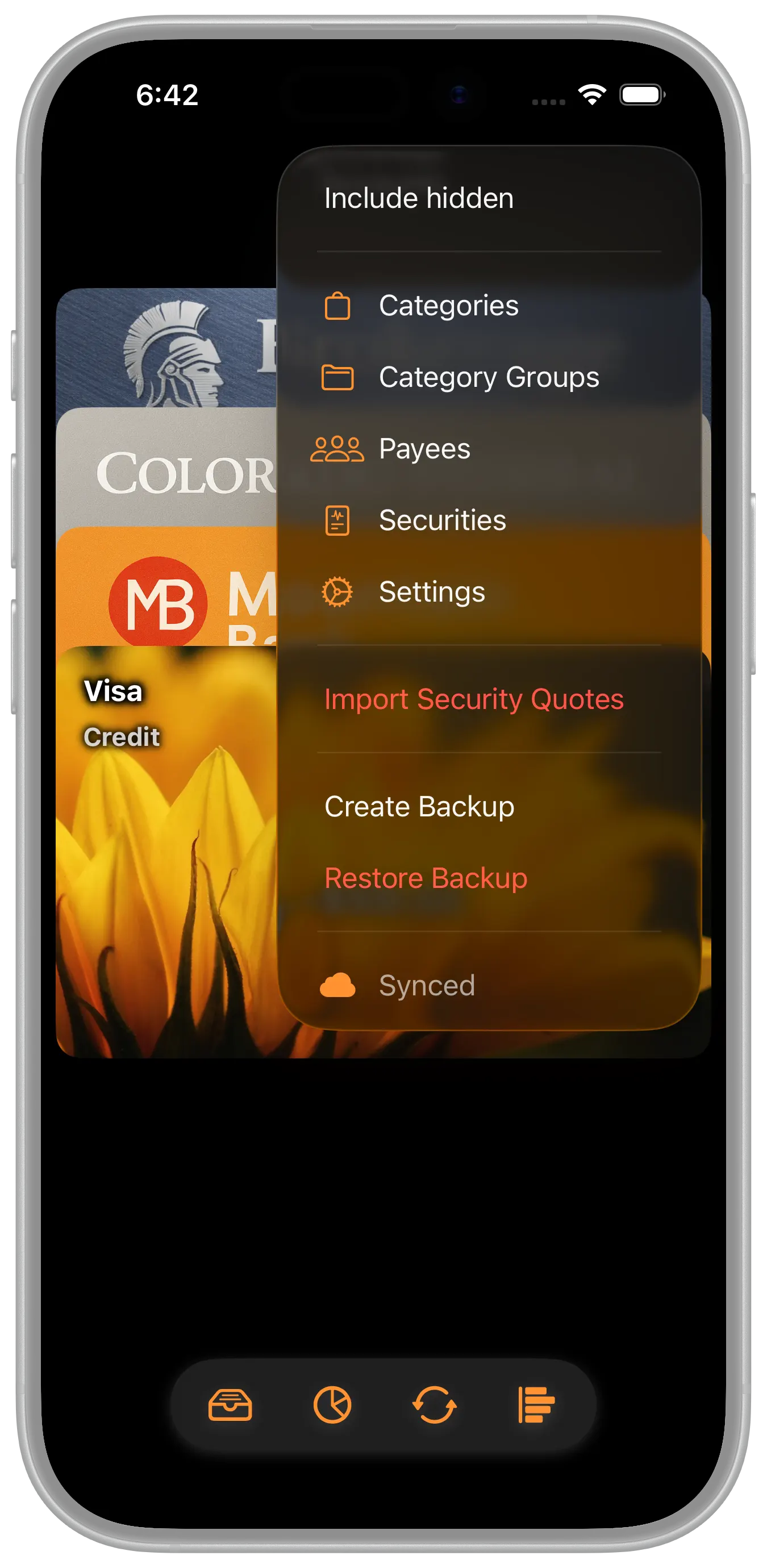
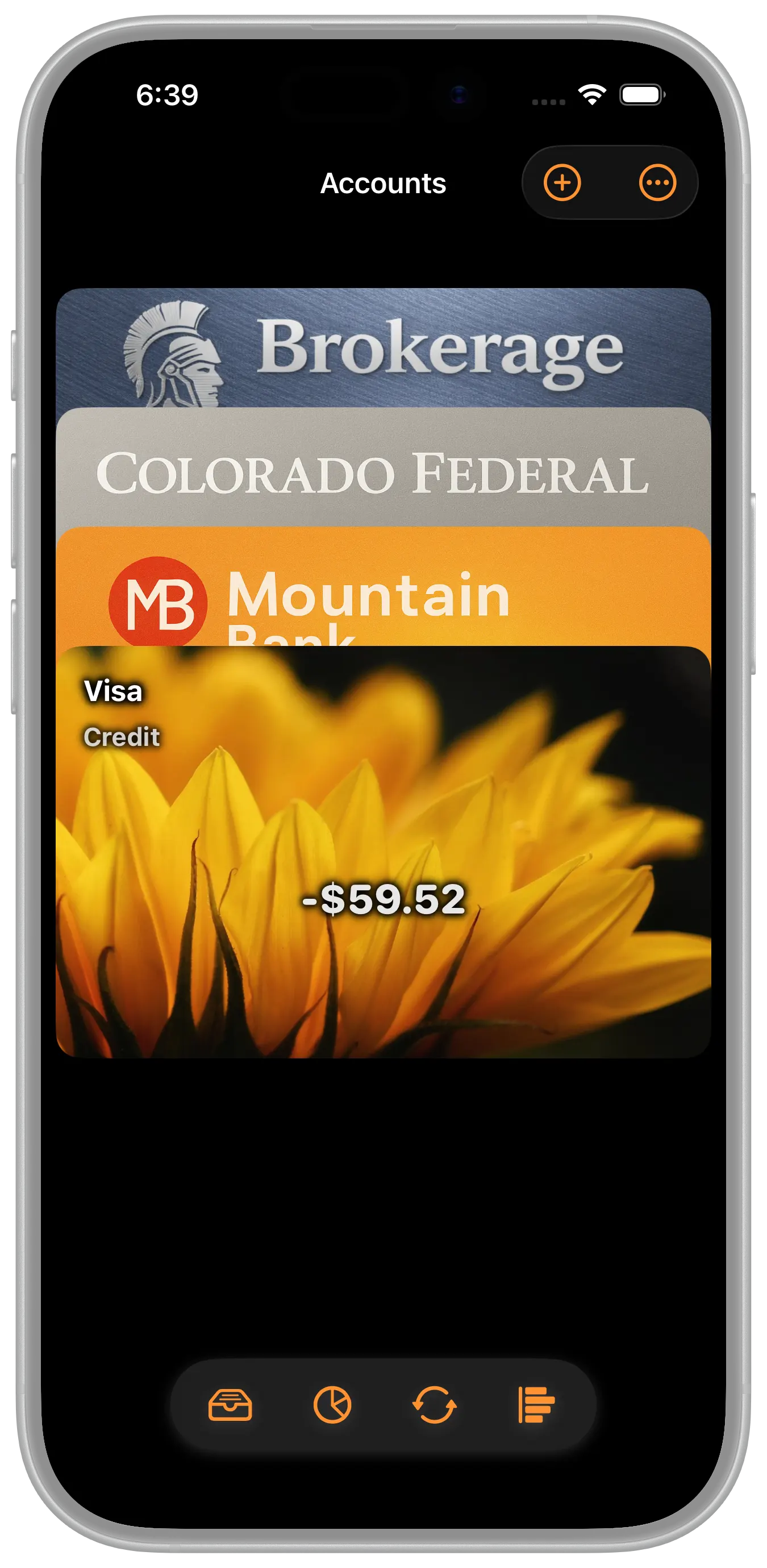
In the settings you can switch from classic mode to wallet mode. This mode represents your accounts with credit card style images with options to hide and show information about your account on top of the image. You can use any image to represent an account. For example, you could use that favorite picture of your child to represent their 529 plan account, or a credit card background to represent your credit card account, or a real-estate photo of your home to represent your mortgage account... the possibilities are literally endless.
Specifications
Many image resolutions and aspect ratios look good but here's what we recommend:
- Resolution: 1536 x 969
- Aspect Ratio: 3.375/2.125 = 1.58 : 1
An Example ChatGPT.com Prompt

As an example, here's a prompt you might use to create the above wallet mode image:
You are an expert credit card designer. I would like a photorealistic, eye-catching, and metallic textured credit card image that fills a 1536x969 resolution without any margins for a fictitious brokerage firm named "Brokerage". The card will be displayed overlapped just like in the Apple Wallet application, so the top 20% of the card should convey the name "Brokerage" and the symbol that appears before the name should be a roman soldier's head. The card image should also not include a security chip or a credit card number.
Choosing a Wallet Mode Image

To set an account image, first enter the settings menu and turn on wallet mode. Then navigate to an account and tap the menu button and choose edit. From there you should see the default image. In the bottom right corner of that image is a button to choose a new image from your photo library.
Payee Images

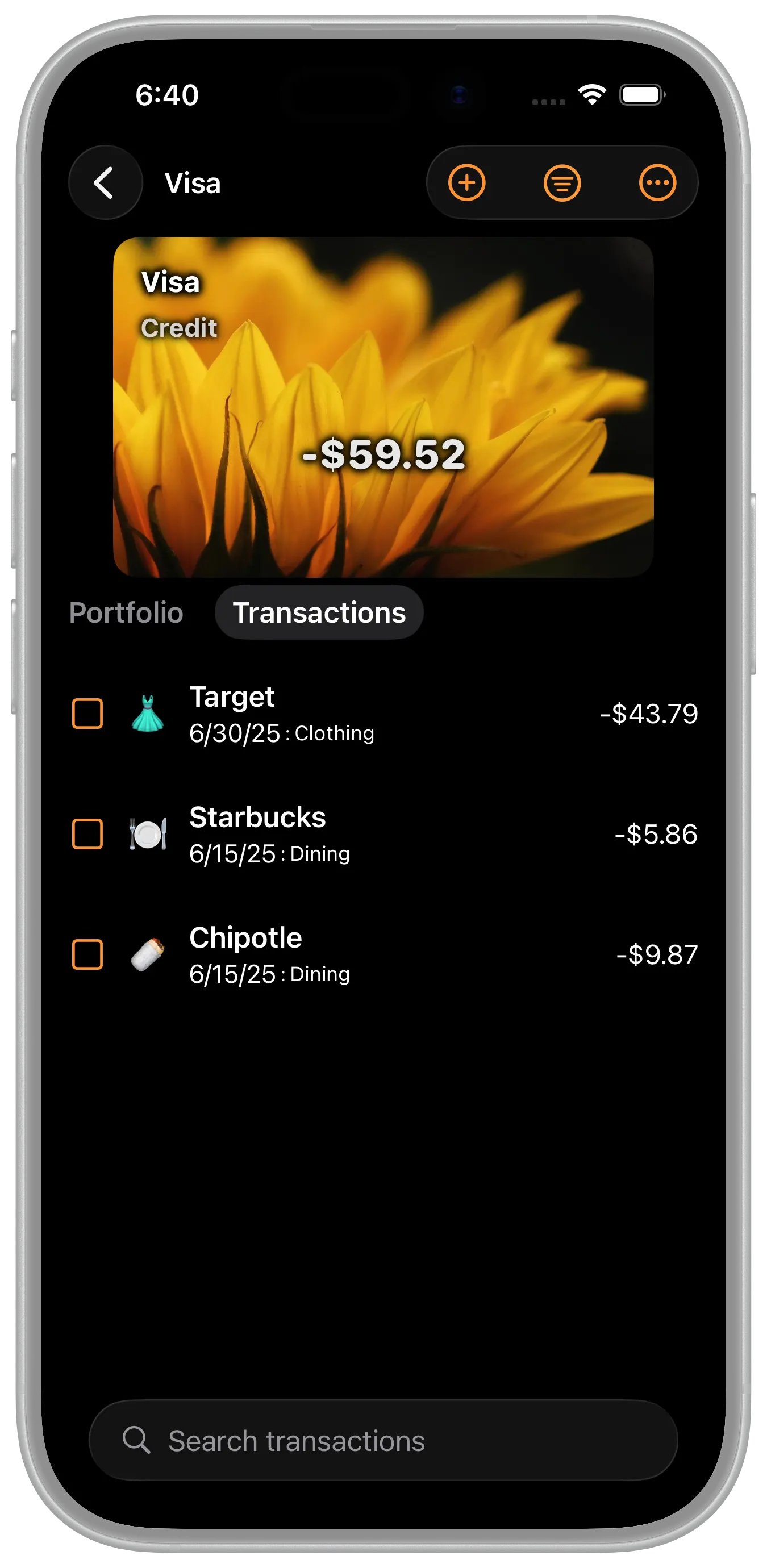
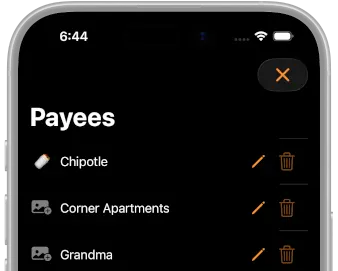
Payee images represent the merchants you frequent. They show up next to the transactions for that merchant. You can use whatever helps you recognize that specific payee. For example, the burrito you order when you're at Chipotle, or maybe the golden arches reminds you of McDonald's, or the steaming hot cup of joe for Starbucks, etc. whatever reminds you of the brand. Whenever a payee image is available, it takes precedence over category emoji's and is shown for that given transaction. That's why in the images above you see a burrito payee image next to Chipotle even though the transaction is categorized as Dining, which is the same category used for the Starbuck's transaction.
Many image resolutions and aspect ratios look good but here's what we recommend:
- Resolution: 492 x 492
- Aspect Ratio: 1 : 1
Choosing a Payee Image
To set a payee image, choose Payees from the menu. Then tap the placeholder image next to a payee.
Category Emoji's
| emoji | category |
|---|---|
| 👗 | Clothing |
| 🍽️ | Dining |
Category emoji's represent the categories for a transaction. In the absence of a payee image, the category image is shown. There's an emoji picker built into the application that makes it easy to select an emoji for a given category.
Choosing a Category Emoji
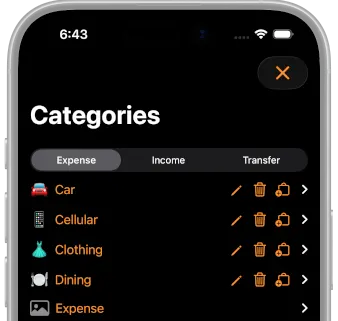
To set a category emoji, choose Categories from the settings menu. Then tap the placeholder image next to a payee.
It's Functional, Fun, & Motivational!
Finances should be functional, fun, and motivational! These customizations accomplish all three. So by all means, have fun as you make the app your own!