Getting Started with My Financials
In this article we'll help you get up to speed quickly with My Financials!
Welcome aboard! We're glad you're here. Let's help you get up and running and ultimately put your finances at your fingertips with My Financials! You have several options...
Kick the Tires
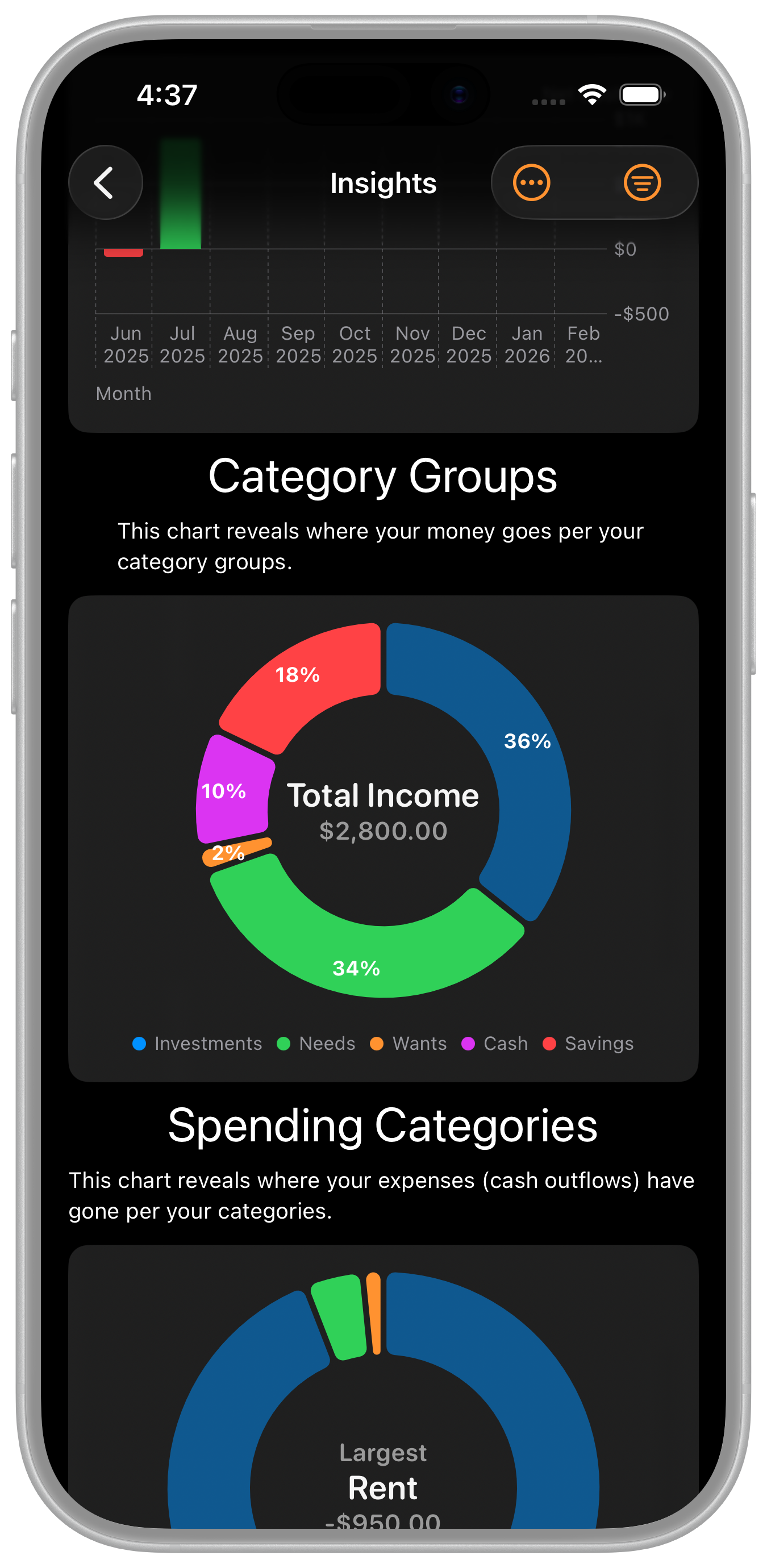
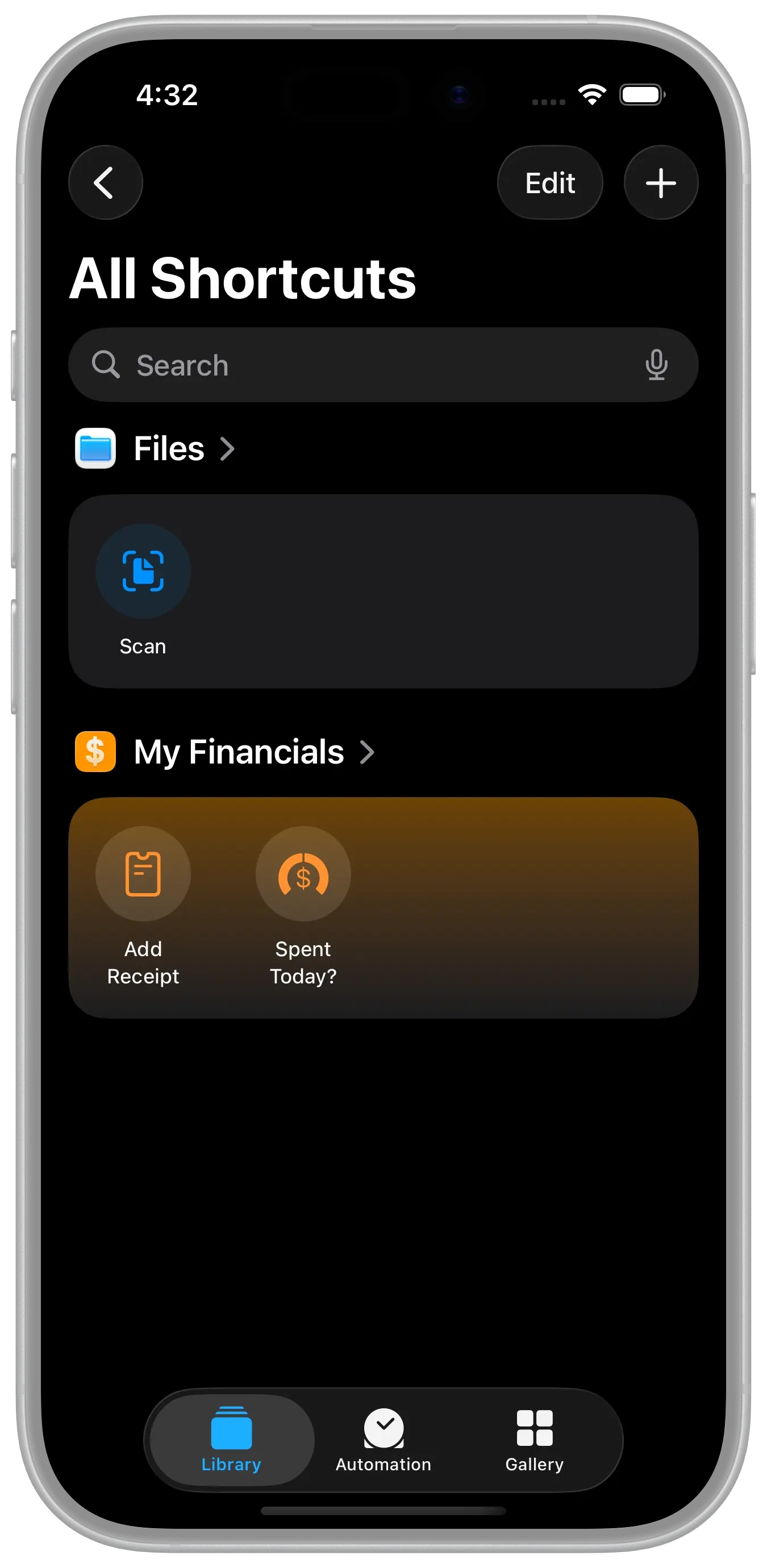
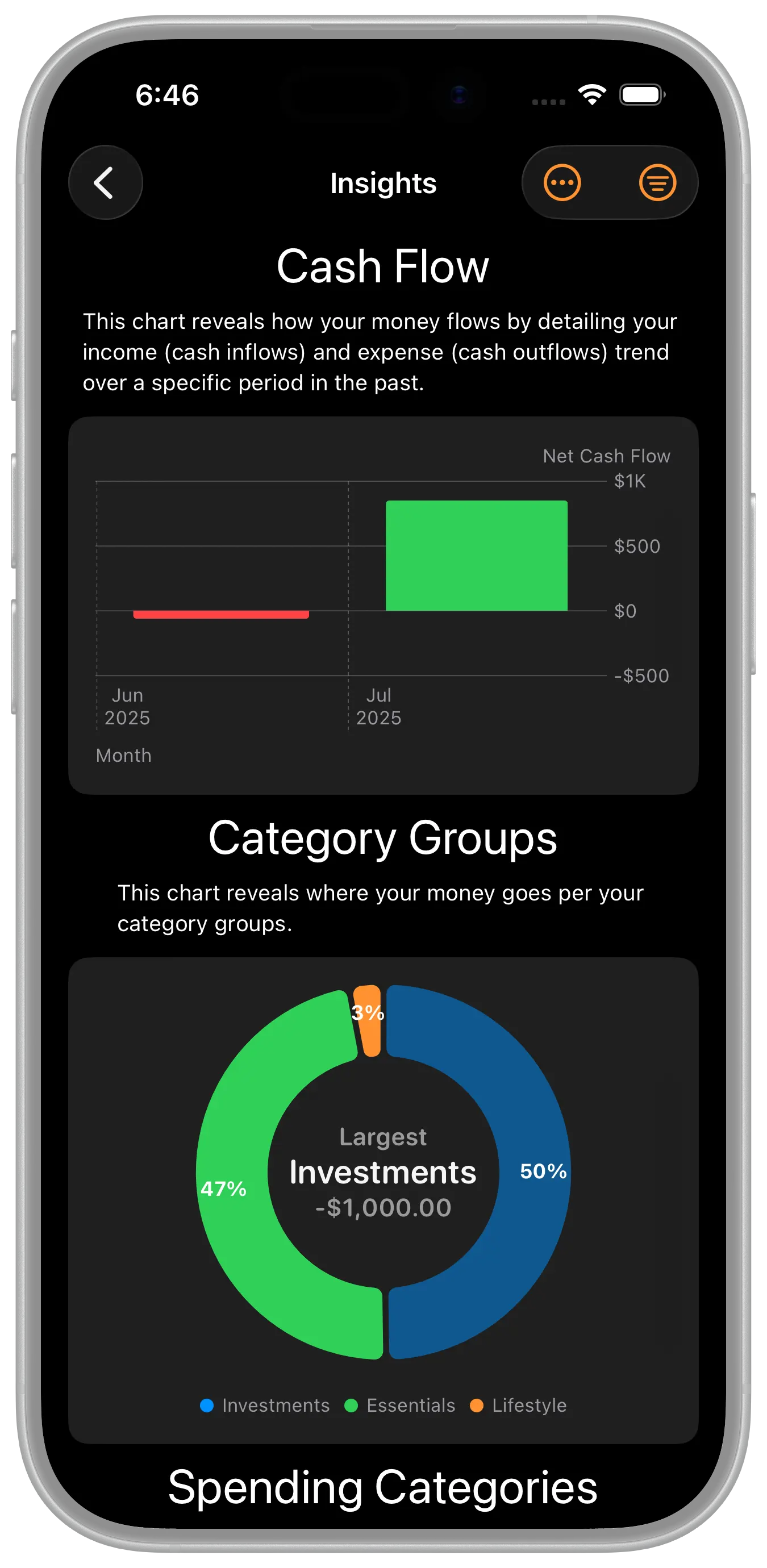
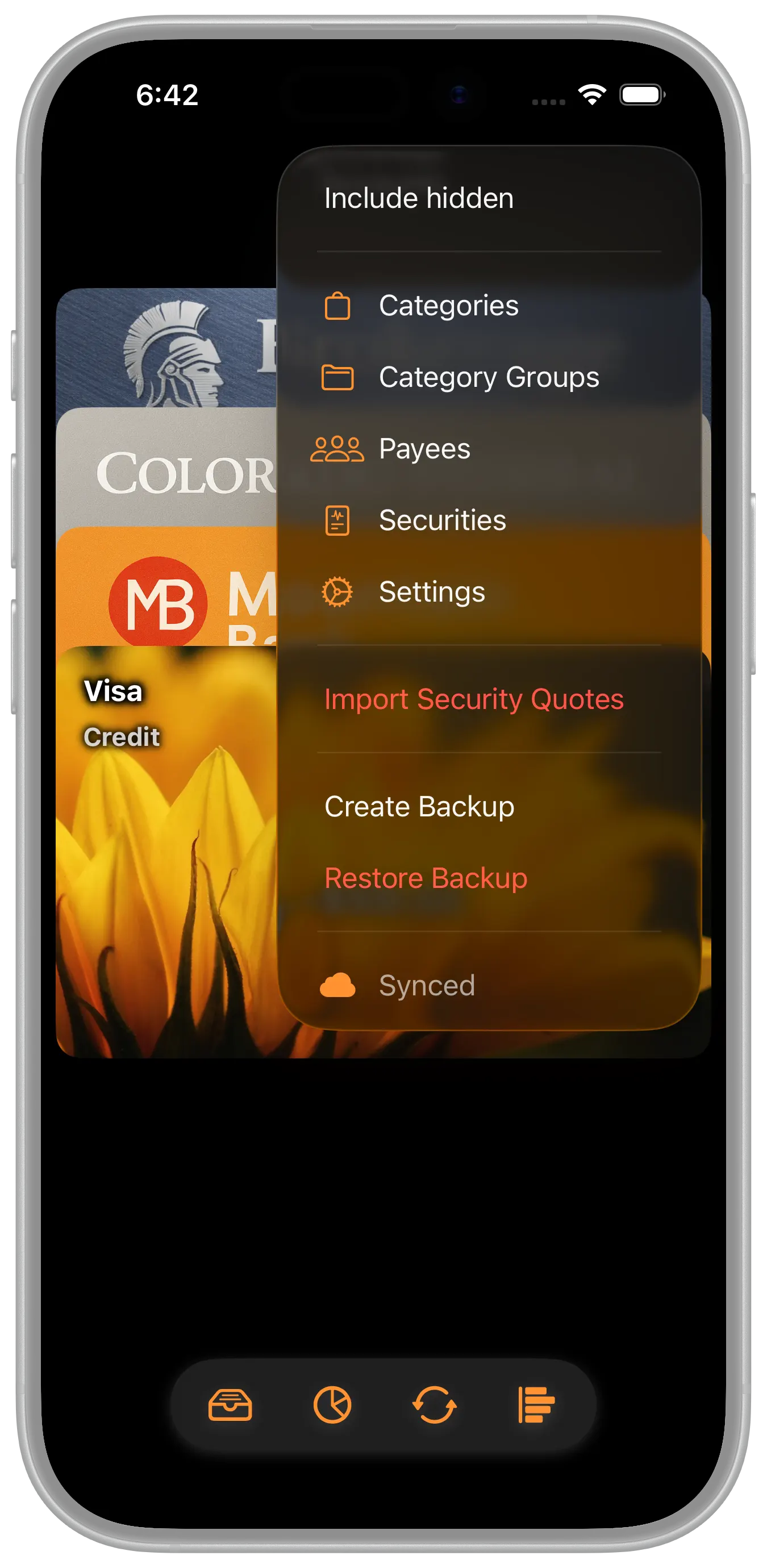
If you want to kick the tires (so to speak) to get to know the application before entering your data, then feel free to play with the default data that comes with the installation. Or, if that isn't enough, please visit the downloads page and select either of the sample data downloads. Once you download those files you can visit the main menu (see image above) and select the "Restore Backup" option. Select the downloaded file and it will fill the app with the sample data. Once that's done you can tour the app and get to know the features. Be sure to tap, long press, and swipe on items to reveal the actions you can take....especially on the charts as they're interactive! When you're ready, you can either delete that data from the "Settings" or "Restore Backup" with your own CSV to overwrite the sample data with your own.
Be sure to tap, long press, and swipe on items to reveal the actions you can take....especially on the charts as they're interactive!
Balance Only
You can start right away with your data by creating an account (or several) that you want to track. You can then enter a single deposit transaction with your starting balance. Although easy, this method leaves behind any transaction information you might currently have in other personal financial software or perhaps a spreadsheet that you use. If you would like that historical information to be a part of MyFinancials, the following information will assist you in importing that information.
OFX, QFX, QIF
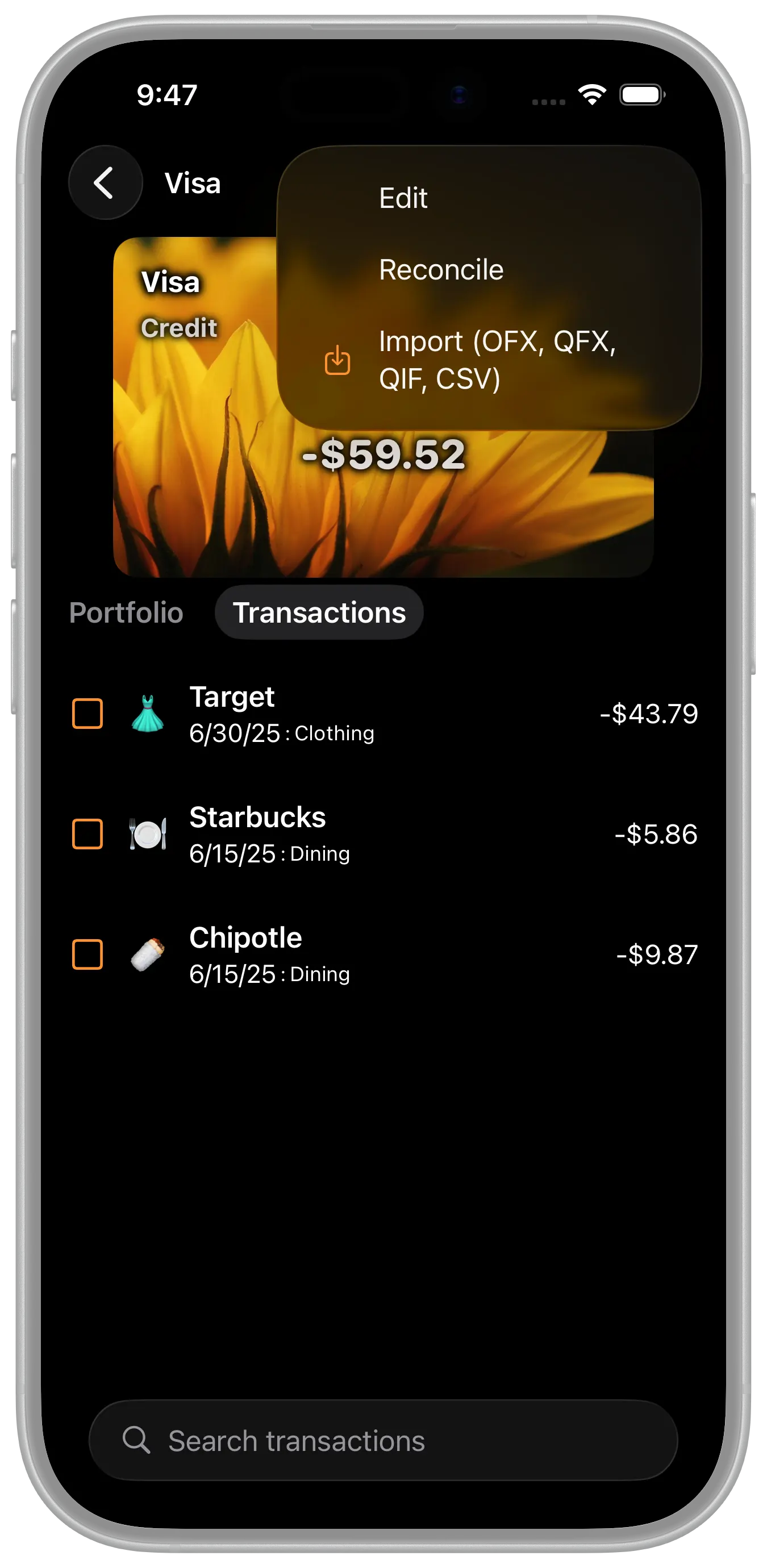
Some financial institutions and personal finance software allow you to download OFX, QFX, or QIF (less likely) formats. MyFinancials supports most forms of this content and you can use them to import data.
CSV Data
One of the best ways to import your data is to use our Open Data Format to capture your data. You can download the CSV template on our downloads page, enter your data (or export from your current software and transform it as necessary) and then you can either use the "Restore Backup" feature or you can import the Account transaction data one account at a time. The former ("Restore Backup") resets the database by deleting all current data and setting it to what is in a given CSV whereas the later (Import Account CSV) resets only the specified account. Apple's Numbers spreadsheet application is helpful if you choose this option.
Next Steps
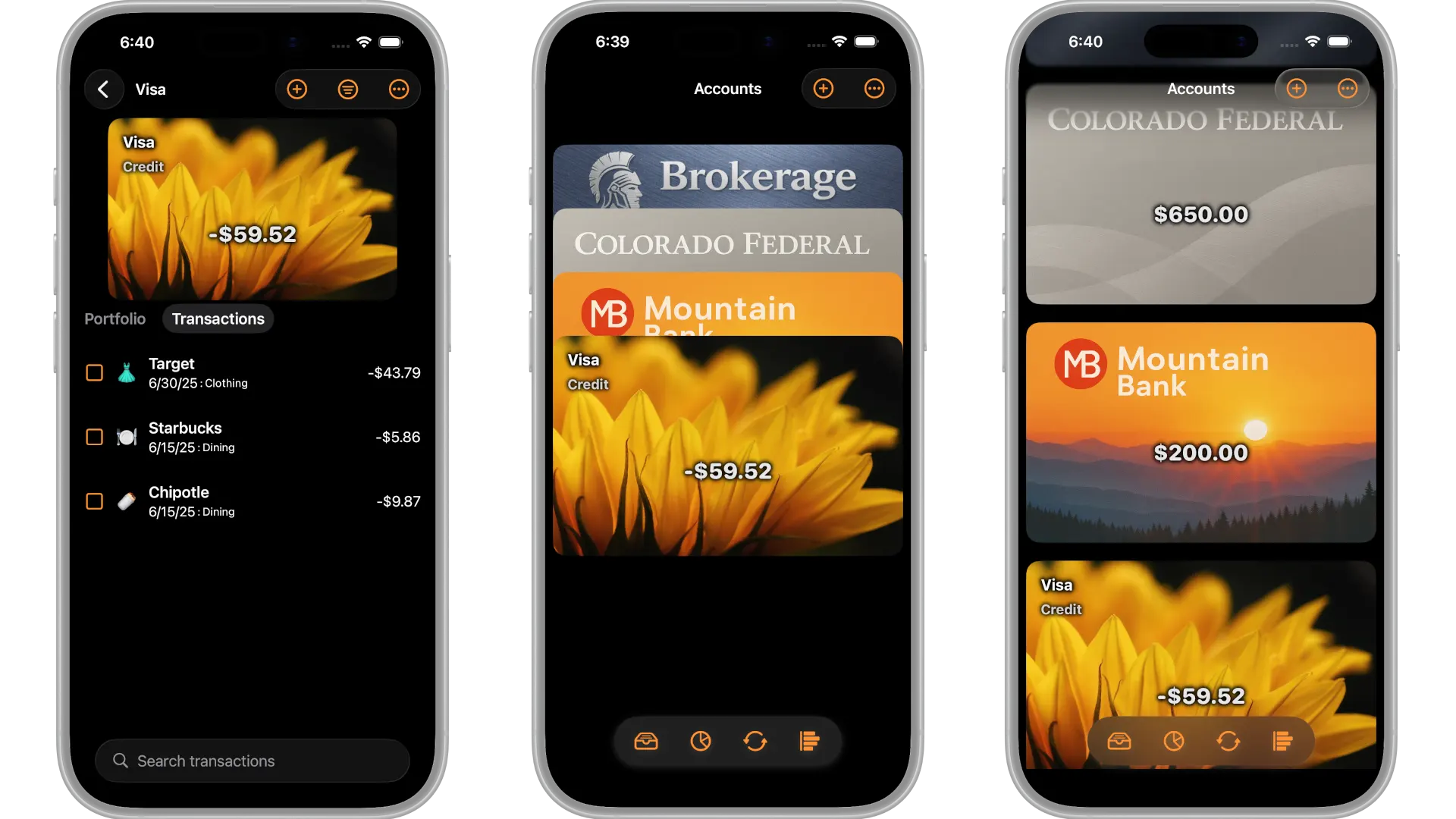
Once your data is ready to go, try customizing the app with images and emojis!