Artificial intelligence is making everyday tasks simpler, from answering questions in natural language to understanding documents and images. But when it comes to personal finances, one question matters: What happens to your personal financial information when you use AI?
At My Financials, we believe you shouldn't have to choose between intelligent features and financial privacy. That's why we've integrated Apple's on-device Foundation Model into My Financials, introducing Sam, your private AI financial assistant, and Scan Receipts, which turns paper receipts into financial transactions.
What Is Apple Intelligence?
Apple Intelligence is Apple's personal intelligence technology for compatible iPhone, iPad, and Mac devices. You may already know AI assistants such as ChatGPT from OpenAI, Gemini from Google, or Claude from Anthropic. These services use technology called a large language model (LLM).
An LLM can interpret questions and generate useful responses, allowing you to communicate with software in everyday language rather than through specific commands. Apple's Foundation Models framework gives developers access to an AI model that runs directly on supported devices.
Why On-Device AI Matters
Many AI services process requests on remote servers. Information included in those requests must be transmitted to the provider for processing, usually cached somewhere in transit, and subject to the provider's privacy and data-handling policies. In contrast, Apple's on-device Foundation Model runs locally on your compatible iPhone, iPad, or Mac.
Apple Intelligence as a broader platform can also use Private Cloud Compute and optional external AI integrations. My Financials specifically uses Apple's on-device Foundation Model for its AI features. Sam and Scan Receipts do not send your financial records to ChatGPT, Gemini, Claude, or even Apple's Private Cloud Compute for AI processing.
Meet Sam: Your Private AI Financial Assistant
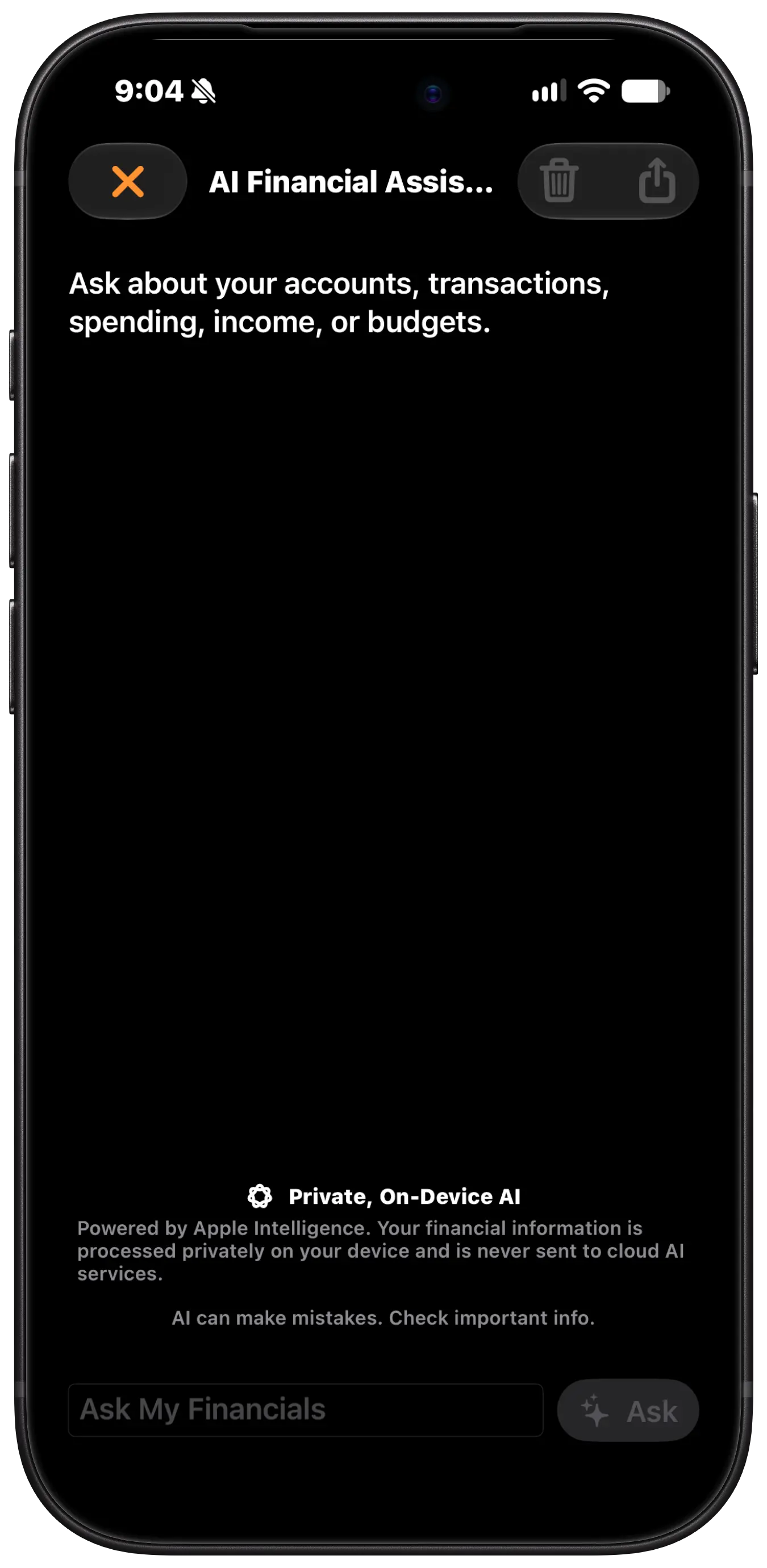
Available in My Financials version 1.2.0 and later.
Sometimes you don't want to navigate reports or configure filters — you just want an answer about your finances. Sam understands everyday financial questions and works with information you've already entered into My Financials to provide the answer.
Ask Questions Naturally
Imagine you're reviewing your household spending and wondering how much you've spent dining out. Simply ask:
“What did I spend on dining last week?”
Sam understands that you're asking about expenses in the Dining category during the previous week. My Financials retrieves the relevant information, calculates the total, and displays the result. No complicated report configuration or manual date selection required.
Other questions you can ask include:
- “How much did I spend on groceries this month?”
- “Show me my savings accounts.”
- “Show me my five most recent transactions.”
- “How much income did I receive last month?”
- “How are my budgets doing this month?”
- “Show me my expense categories.”
Intelligence Backed by Financial Calculations
Sam interprets your question and uses My Financials' financial tools to retrieve records and calculate amounts. The app performs the calculations and presents the results, combining conversational AI with its established financial reporting capabilities.
Like any AI assistant, Sam can occasionally misunderstand a question. You can review the underlying transactions and reports to verify the information.
Introducing Scan Receipts: From Paper to Transactions
Available in My Financials version 1.2.1 and later.
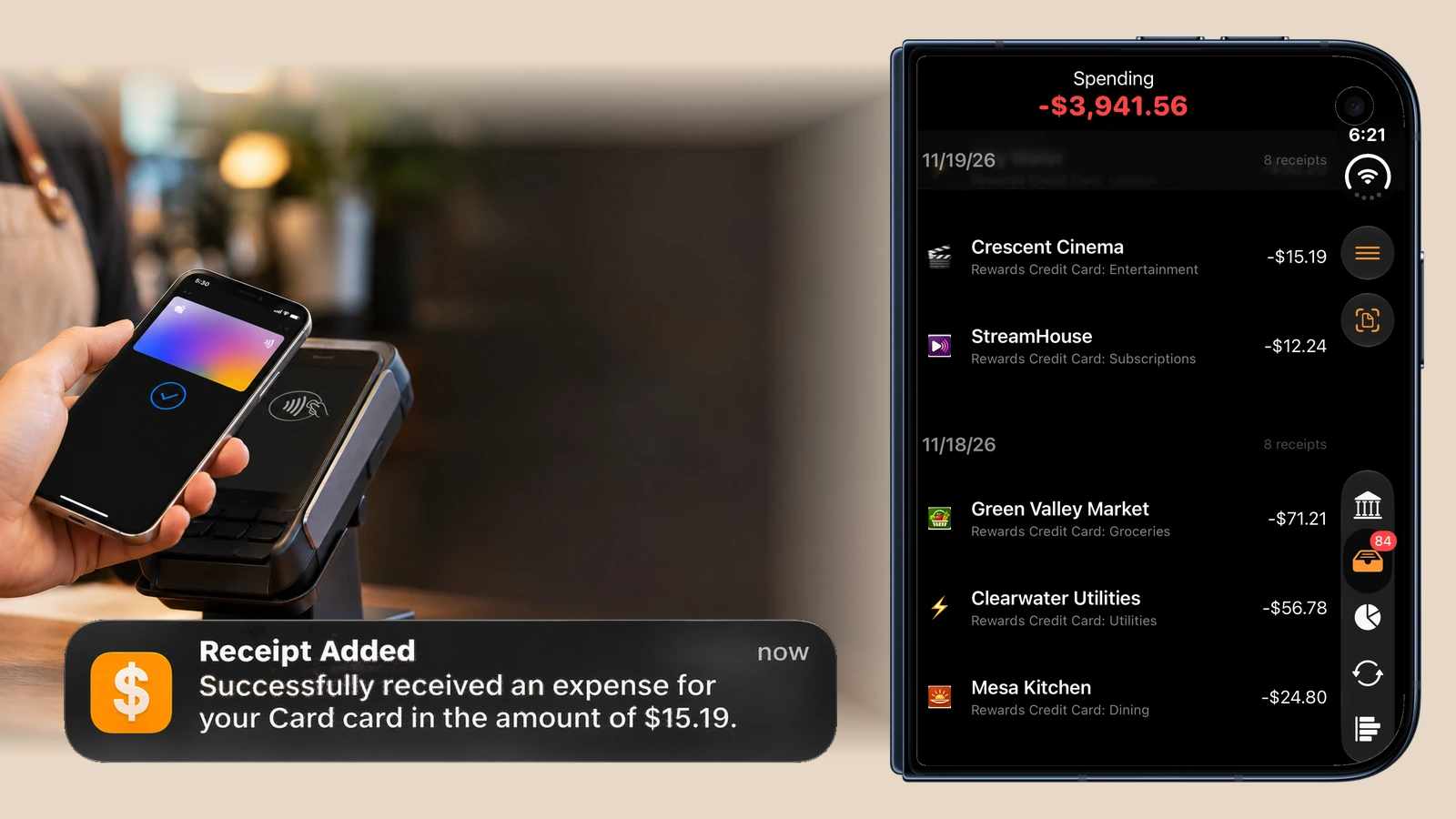
Not every purchase starts with Apple Pay (which My Financials can be configured to handle automatically). Sometimes you pay cash or receive a traditional paper receipt. Scan Receipts uses your device's camera and Apple's on-device intelligence technologies to turn a paper receipt into a financial transaction.
Example: Your Partner Brings Home a Receipt
Imagine your partner stops at the grocery store on the way home, buys groceries, and leaves the paper receipt on the kitchen counter. You want to record the purchase, even though you weren't there when it happened.
Instead of typing in the details manually, or speaking them to Siri, you can now:
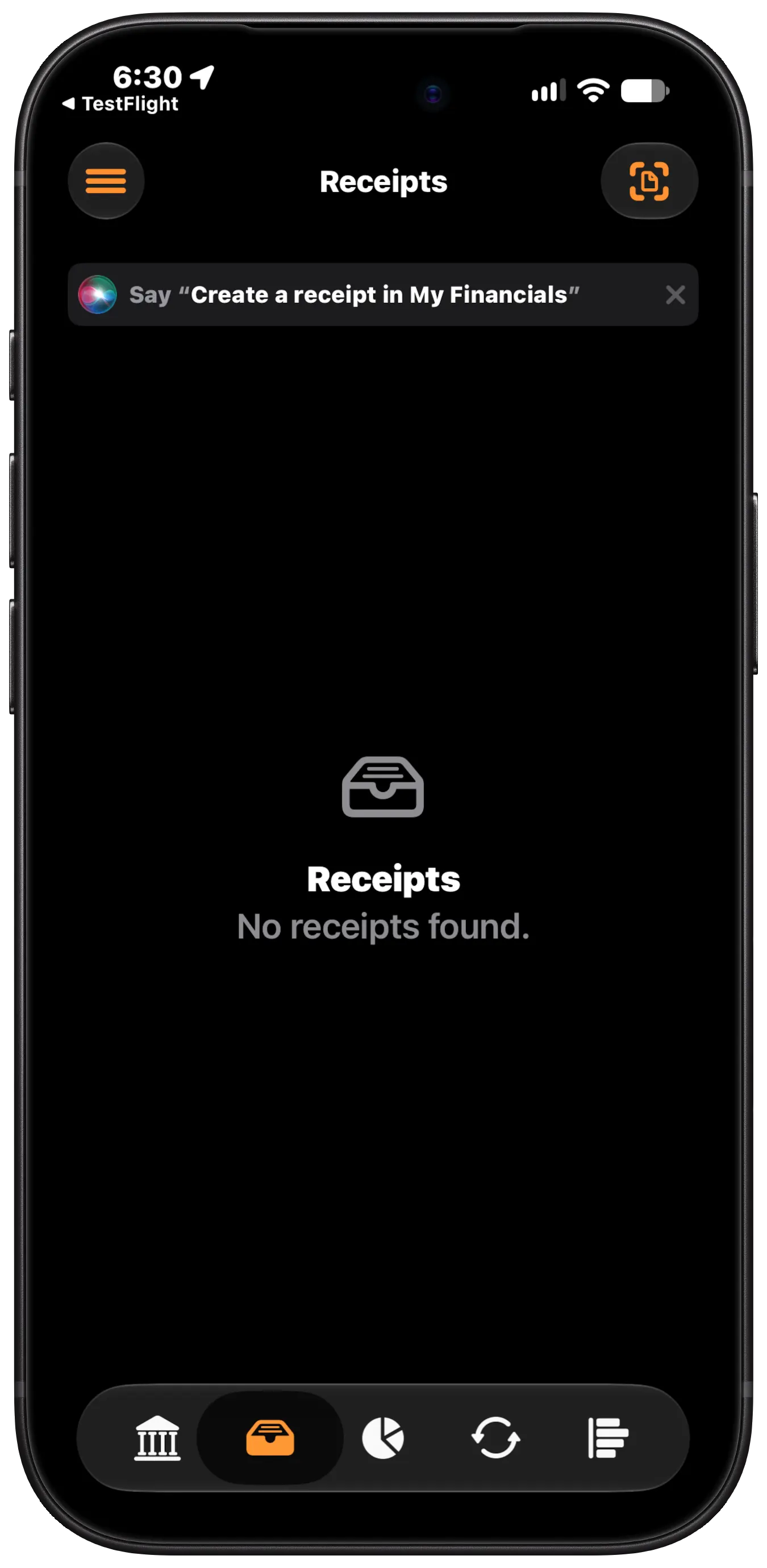
- Open the Receipts view and tap Scan Receipts in My Financials.
- Point your device's camera at the receipt.
- Capture it and let the on-device intelligence interpret its information and create a receipt.
It's equally useful for cash purchases at restaurants, shopping at small businesses, and recording purchases made by other household members. You remain in control of reviewing the details before the receipt becomes a transaction.
Receipts may reveal where you shop, what you buy, and when you made a purchase. Scan Receipts processes captured information using your on-device camera, text-recognition, and AI technologies rather than uploading receipt images or extracted details to a third-party AI service for analysis. The result is a receipt entered into My Financials' receipt view which can be turned into a transaction with a tap. Oh, and since the receipt details are scanned, a category is recommended as well!
Recognition accuracy depends on print quality, lighting, and receipt condition, so always check the captured details.
Your Financial Data. Your Devices. Your iCloud.
My Financials doesn't require bank connections or financial account credentials. Your records are stored on your devices and synchronized through your personal iCloud account.
We don't operate a financial aggregation service or have access to your account balances, transactions, or spending history. Our on-device AI features follow that same privacy-first philosophy.
No bank logins. No third-party financial aggregators. No cloud AI processing of your financial records.
How to Enable Apple Intelligence in My Financials
These features are optional. Apple Intelligence must be available and enabled in your operating system and the Enable Apple Intelligence setting must be turned on in My Financials.
Step 1: Enable Apple Intelligence on Your Device
- On iPhone or iPad, open Apple's Settings app. On Mac, open System Settings.
- Find Apple Intelligence & Siri, or the corresponding Apple Intelligence settings for your OS version.
- Enable Apple Intelligence if needed and allow the on-device model to finish downloading.
Step 2: Enable Apple Intelligence in My Financials
- Open My Financials and go to Settings.
- Find Enable Apple Intelligence.
- Turn the setting on.
If the on-device model is still downloading or unavailable, the features may not be ready immediately.
Requirements and Compatibility
| Requirement | Sam | Scan Receipts |
|---|---|---|
| My Financials version | 1.2.0 or later | 1.2.1 or later |
| iPhone | iOS 26 or later | iOS 27 or later |
| iPad | iPadOS 26 or later | iPadOS 27 or later |
| Mac | macOS 26 or later | macOS 27 or later |
| Apple Intelligence support | Required | Required |
| Camera vision support | Not required | Required |
| Enable Apple Intelligence in My Financials | Required | Required |
Both features require compatible hardware and the on-device Foundation Model to be available. Apple's supported languages, regions, storage, and software requirements also apply. See Apple's Apple Intelligence support information for current compatibility details.
What If My Device Doesn't Support Apple Intelligence?
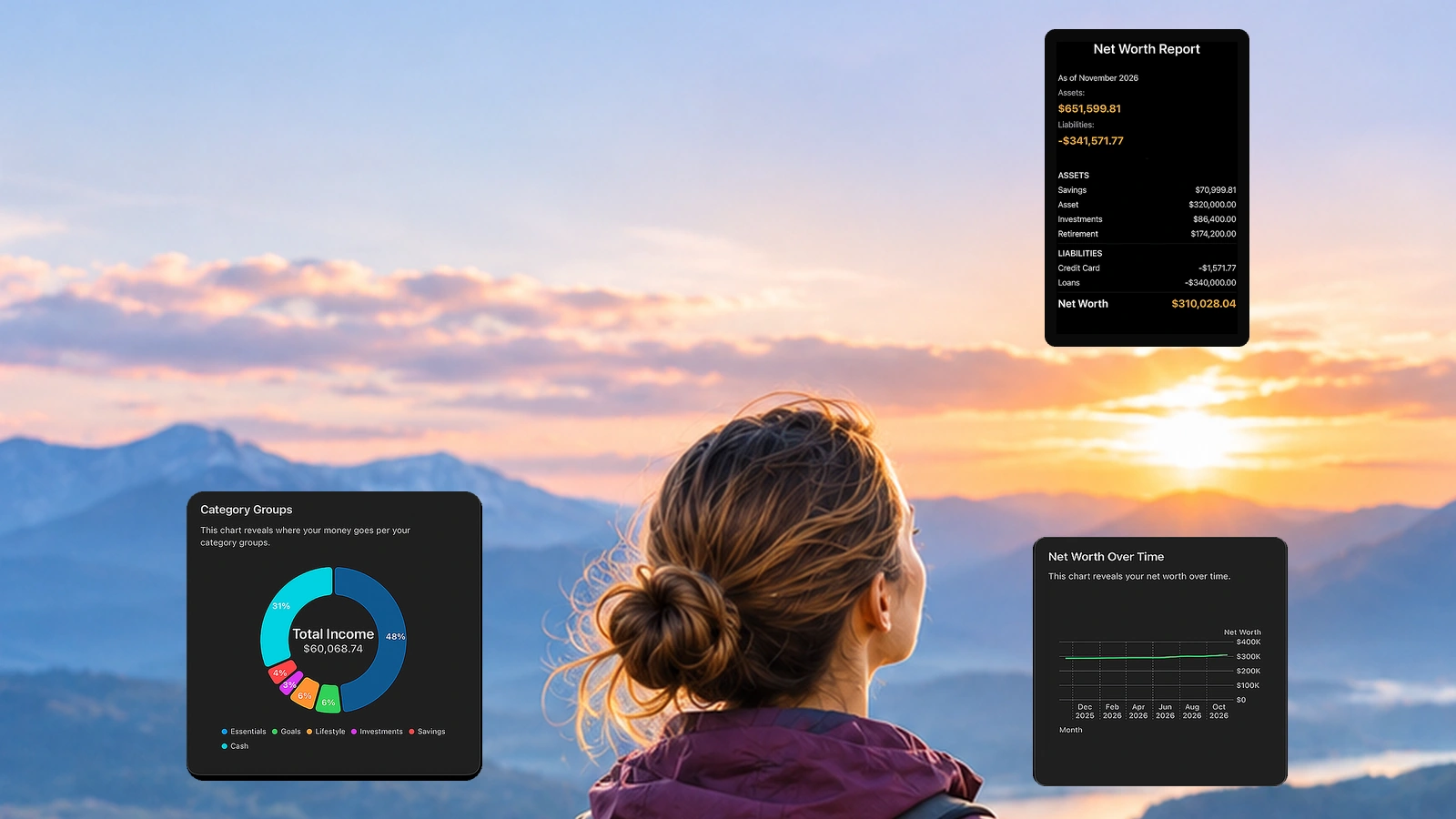
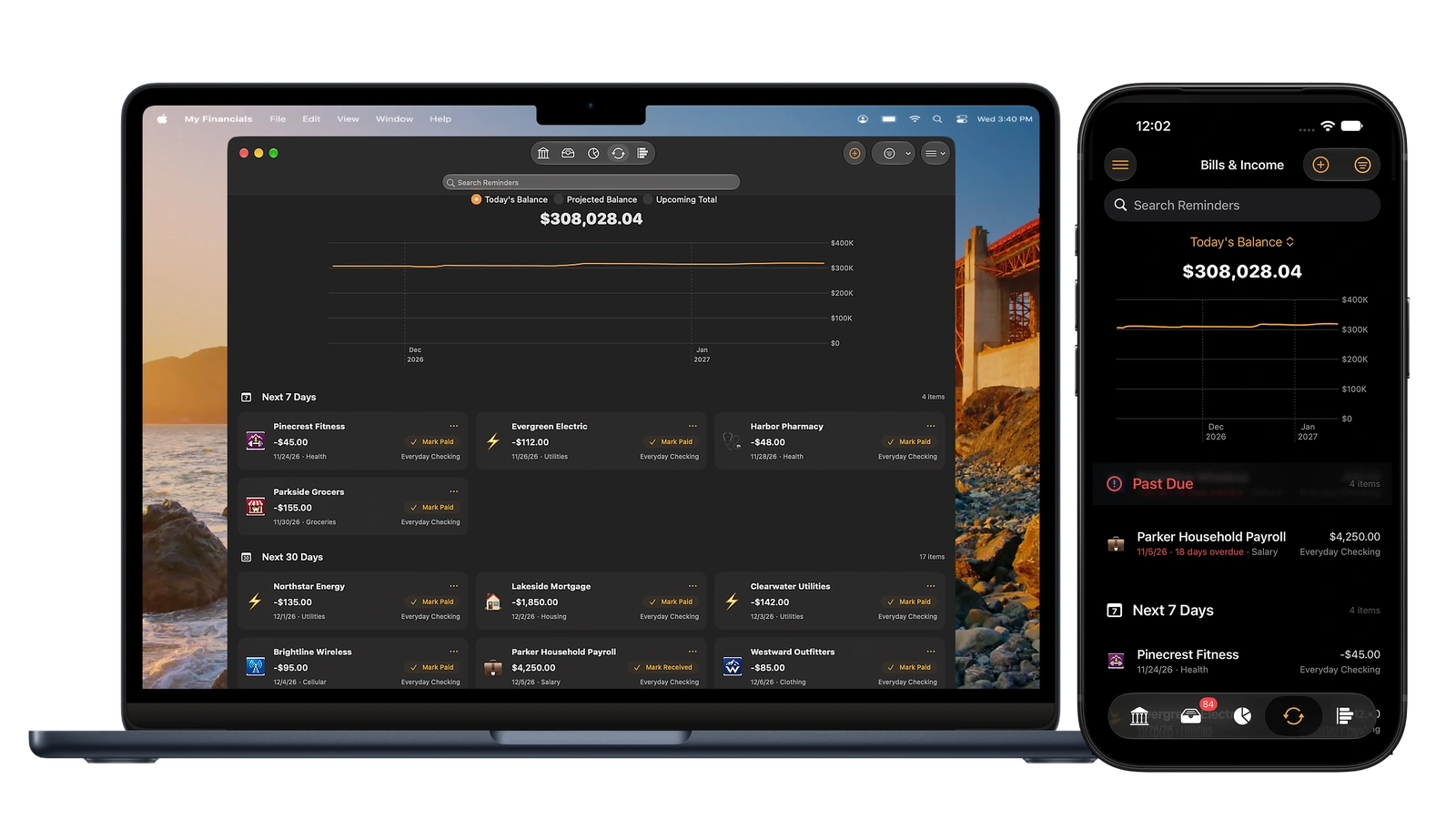
No problem. Apple Intelligence is optional. You can continue managing accounts, transactions, investments, spending, budgets, recurring bills, net worth, and much more in My Financials without enabling Apple Intelligence (AI).
Smarter Money Management. Privately Yours.
With Sam, ask questions about your finances in everyday language. With Scan Receipts, turn paper receipts into transactions — including purchases made by someone else in your household.
My Financials + Apple Intelligence: Smarter money management. Privately yours.
Apple Intelligence features require compatible hardware, supported operating systems, and feature availability. Sam requires My Financials 1.2.0 or later and iOS, iPadOS, or macOS 26 or later. Scan Receipts requires My Financials 1.2.1 or later and iOS, iPadOS, or macOS 27 or later, camera vision support, and Apple Intelligence support. Review AI interpretations and scanned transaction details for accuracy.